Stock
Warehouse and Bins
Bins inside each location (zone, row, shelf), what is in each one, putting stock away, moving it between bins, bin labels and the phone scanner.
Last updated 29 Oct 2026
Switch on Warehouse Management on Company Profile → Features. Warehouse then shows in the menu.
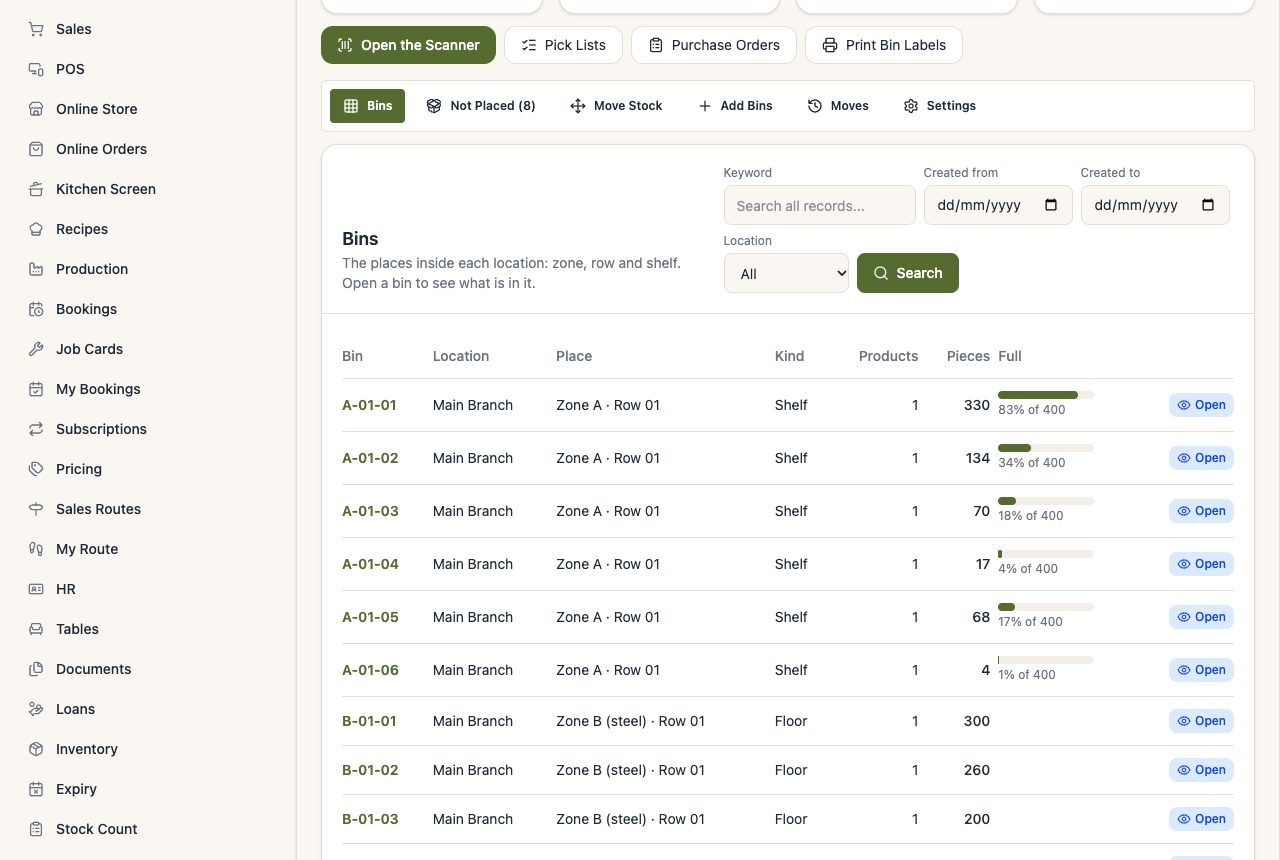
Bins
A bin is a place inside a location: a shelf, a pallet place, a corner of the floor, a cold room. It has a code (A-01-03) and, if you like, a zone, a row and a shelf.
- Add Bins: type one code, or add a whole row at once: prefix A-01- from 1 to 10 makes A-01-01 to A-01-10.
- Holds (optional): how many pieces fit. The bin list then shows how full each bin is.
- Print Bin Labels: each label has the code as a barcode. Stick them on the shelves; the scanner reads them.
- Open a bin to see what is in it, change it, or delete it (only when it is empty).
Where stock goes
The product keeps its total stock as before; the bins say where it is.
- Stock coming in (goods received, a purchase, a transfer) goes to the bin you choose, or else to the product's usual bin (on the product: Usual Bin).
- Stock going out (a sale) is taken first from stock in no bin, then from the usual bin, then from the fullest bins. The sale page shows which bins it came from.
- The product page shows Where It Is: the quantity in each bin.
Put away and move
- Not Placed lists stock in no bin yet (for example stock you had before using bins). Choose the bin and how many, and press Put away.
- To move stock between bins, open the bin it is in and use Move, or use the Scanner. Moves do not change the total stock; they are listed on Moves.
The scanner
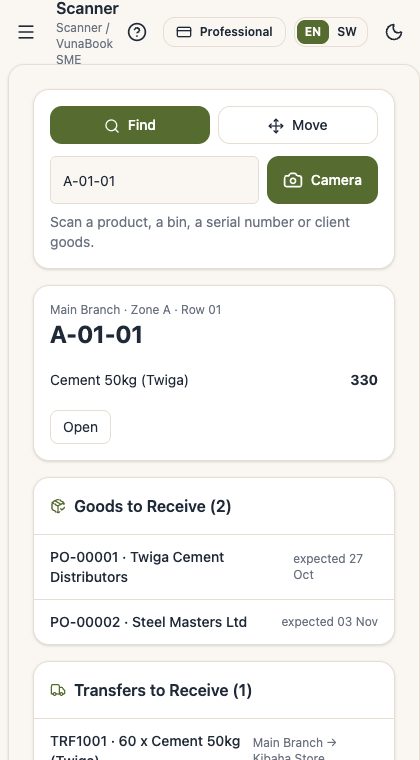
Open the Scanner on a phone. Use the camera, or a hand scanner (it types the code and presses Enter).
- Find: scan a bin to see what is in it, a product to see its bins, a serial number to see its story, or a storage client's goods.
- Move: scan the product, then the label of the bin it goes to, type how many and press Move.
- Below are the jobs waiting: goods to receive, transfers to receive, counts open and orders to pick. Each opens its own page, which has a scan box too.
Counting one bin
On Stock Counts → Start a Count, choose a Bin: the sheet has only what that bin holds, and the differences are put right in that bin. See Stock Counts.
Settings
On Warehouse → Settings (for those who manage the company):
- Transfers are received at the other end: see Stock Transfers.
- Sales that get a pick list by themselves: tick the locations whose sales go straight to Pick, Pack and Dispatch.