Getting Started
Company Profile and Features
Your business details, the features you use, and what the dashboard, reports and POS show.
Last updated 29 Oct 2026
Company Profile (in the menu) holds everything about your business. Only users allowed to manage the company see it.
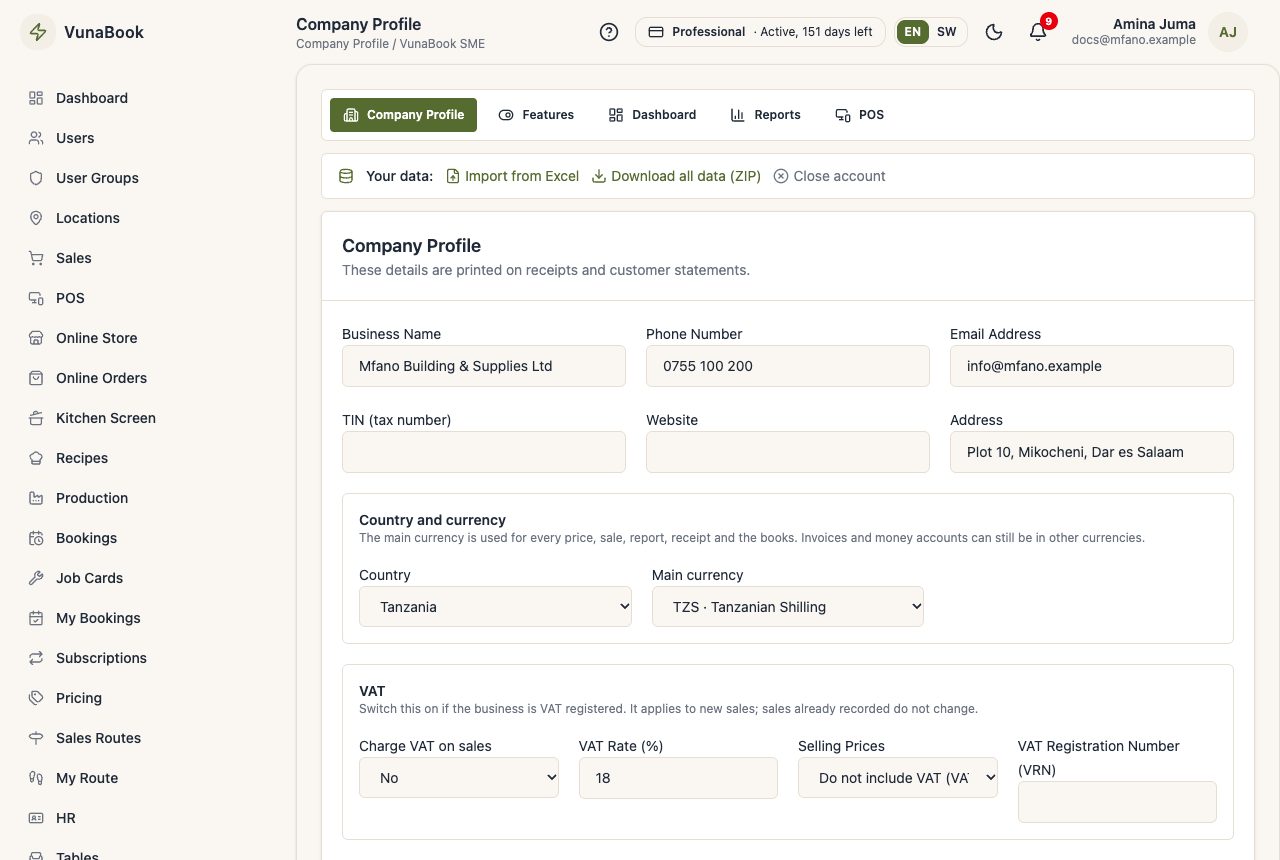
Company Profile tab
Business name, phone, email, address, TIN, VRN, logo, VAT settings and the prices you use. These details are printed on receipts, invoices and customer statements.
Country and currency
Where your business is and its main currency are on the Company Profile tab, under Country and currency. Every price, sale, receipt, report and the books are in the main currency: KES, UGX, NGN, ZAR, TZS ... every African currency, and USD, EUR and more.
- Choosing a country fills in its currency; you can choose another one.
- Invoices (Documents) and money accounts can still be in another currency. An amount in another currency stays out of the books.
- Changing the currency later does not convert anything: every amount keeps its number and is shown in the new currency. The money accounts and invoices of the old main currency move to the new one. A company that already has sales must tick that it understands.
Your currency is not what VunaBook charges you for your plan: see Plans and Billing.
Features tab
Switch features on or off. A feature that is off disappears from the menu for everybody, with all its pages, buttons and dashboard cards, and its data stays safe. Switch it on again any time.
- Basics: Sales, Products & Stock and Customers are in every plan and on from the start. A business that does not use one switches it off, for example a construction company that only sends invoices and does not sell over the counter. Each one says what else needs it (POS, Returns and Loans sell through Sales; project clients are Customers ...), so check before switching it off.
- Optional features: your plan decides which ones you may switch on.
Dashboard, Locations, Users, User Groups and Settings are always there.
Dashboard and Reports tabs
Choose the cards on the dashboard, and which reports appear in the report library, for the whole company.
POS tab
How the POS screen looks: template, colours and how products are arranged. See POS.