Getting Started
Getting Started
Open your VunaBook account, set up your business and start selling in a few minutes.
Last updated 29 Oct 2026
VunaBook runs your business in one place: sales and payments, stock, customers, suppliers, money, staff and much more. It works in the browser on a computer, tablet or phone. Nothing to install.
The website and signing in
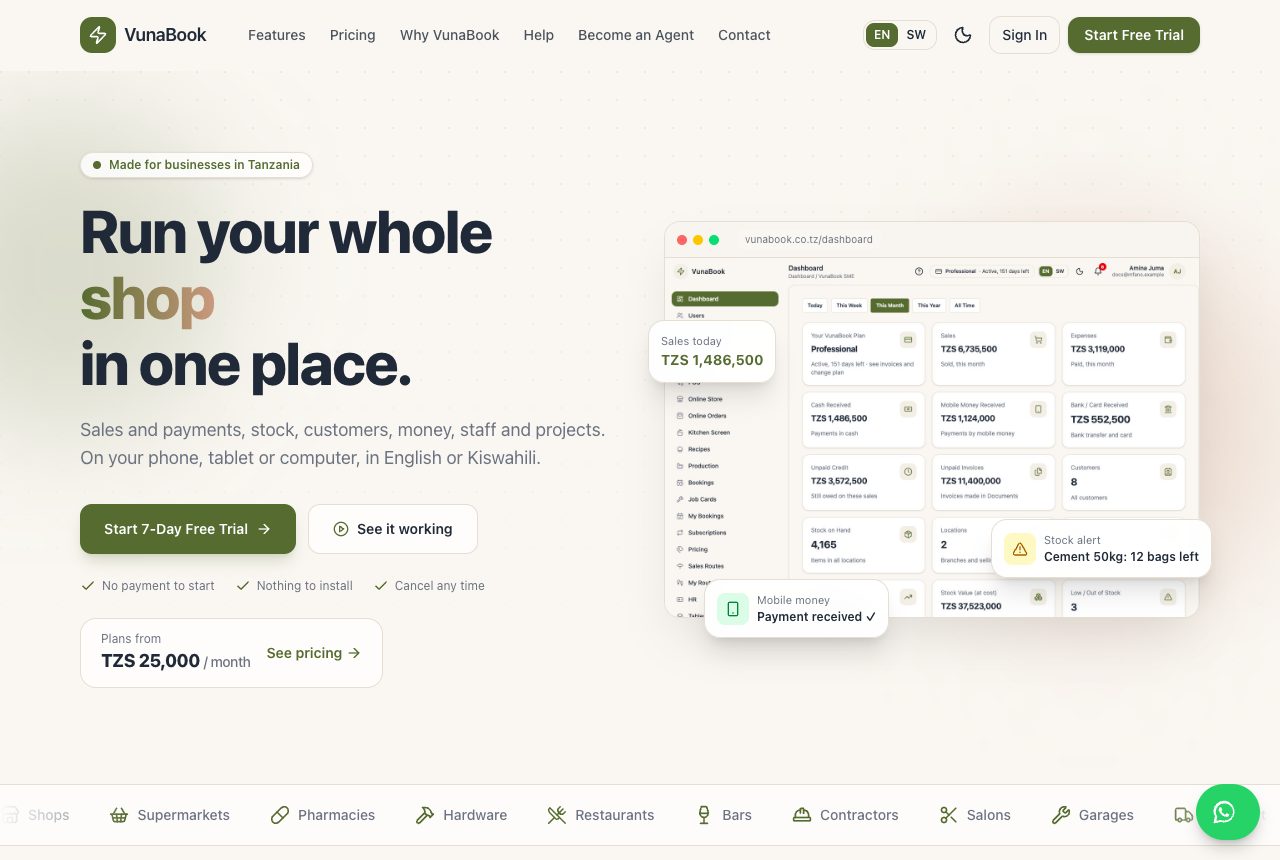
The VunaBook website shows what VunaBook does (Features), the plans and prices (Pricing) and how to reach us (Contact). Press Sign In at the top to open the sign-in page (/login), or Start Free Trial to open an account.
Open your account
- Go to the VunaBook website and press Start Free Trial.
- Choose the country of your business and your currency (it is filled in from the country). The plan prices follow the country: TZS in Tanzania, US dollars everywhere else.
- Choose a plan (you can change it later), then fill in your business name and phone, your name, your email and a password.
- Have a promo code? Type it in the box (an agent's link fills it in).
- Accept the terms and press Start Free Trial. We email a 6-digit code to your email: type it on the next page and your account opens with the free trial. (No email? Check the spam folder, or press send a new code.)
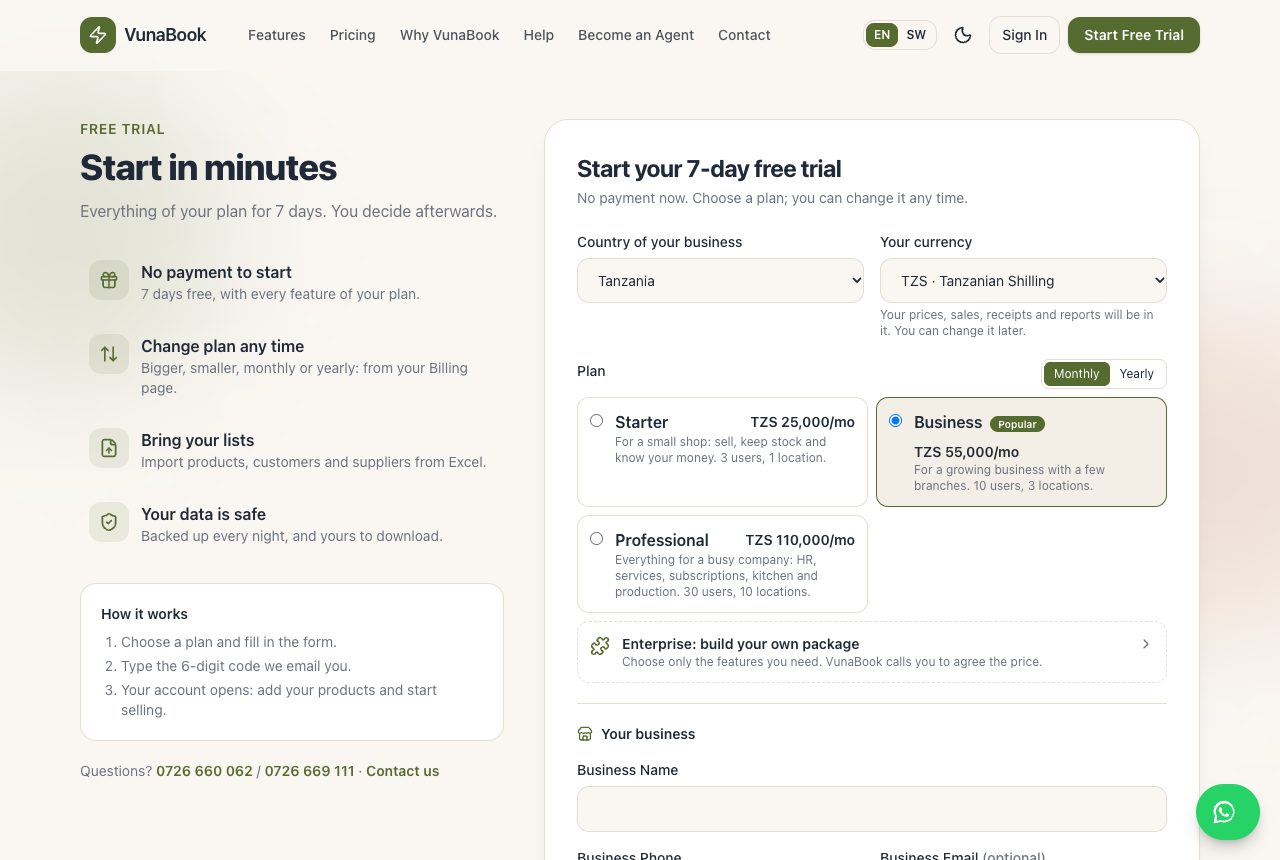
Need features no plan matches? Choose Build your own package on the sign-up page, tick the features you need, and VunaBook calls you to agree the price. See Plans and Billing.
Your first ten minutes
A new account opens with Set up your business on the dashboard. Start with its first step, Check your country and currency: every amount in VunaBook is shown in that currency. Each step is ticked when it is done, and Hide closes the list.
- Company Profile: add your logo, address, TIN and VRN. They are printed on receipts and invoices. See Company Profile and Features.
- Features: switch on only what your business uses (POS, HR, Projects ...), so the menu stays short.
- Locations: add your shops, branches or stores. See Locations.
- Products and customers: type them in, or bring your Excel lists in at once. See Import from Excel.
- Users: invite your staff and choose what each one may do. See Users and Groups.
- Make your first sale. See Sales.
Finding your way
- The menu on the left shows the pages you may use. On a phone, open it with the button at the top left.
- At the bottom of the menu, Administration (Approvals, Security & Data, Import Data, Settings) and Help & Updates (Help Centre, What's New) open to show their pages.
- Most pages have tabs at the top (for example Products · Add Product · Insights).
- The ? button at the top of every page opens its help here.
- EN | SW switches between English and Kiswahili. The moon button switches dark mode.
- The bell shows your alerts (low stock, payments due, approvals ...).