Stock
Pick, Pack and Dispatch
Pick lists for sales: take the goods from the shelves in bin order, pack them and record how they left.
Last updated 29 Oct 2026
Part of Warehouse Management. Pick Lists is in the menu for those who may pick orders.
Send a sale to the warehouse
- On the sale page, press Send to Picking, or
- on Warehouse → Settings, tick the locations whose sales get a pick list by themselves (POS sales never do: the customer is at the till).
The stock already left with the sale. The pick list lines are in bin order (from the bins the sale took the stock from), so the picker walks the warehouse once.
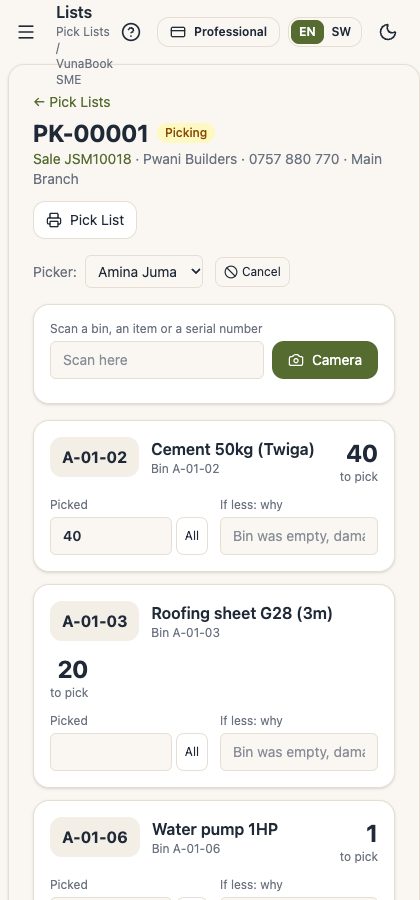
Pick
- Open the pick list on a phone and press Start Picking (it becomes yours; it can also be given to someone).
- Go to each bin. Scan the bin label: its lines light up. Scan each item: the picked count goes up. Or type the number, or press All.
- For a product with serial numbers, tick (or scan) the serial numbers you took: they go to the sale with the customer and the warranty.
- If less was found than needed, say why. The warehouse manager is told, so the bin can be checked and counted.
- Finish Picking.
Pack and dispatch
- Packed: the number of boxes, bags or pallets and the weight. Print the Packing Slip for the box.
- Dispatched: how it left (collected by the customer, our delivery, a courier, a bus parcel), the vehicle or tracking number, and who took it.
The sale page shows where its order is. A voided sale stops its pick list.