Stock
Purchase Orders and Goods Received
Order from a supplier, print or send the order, then receive the goods against it, refusing what is damaged or wrong.
Last updated 29 Oct 2026
Purchase Orders is in the menu for those who may order or receive goods. Nothing goes into stock or the books until the goods are received.
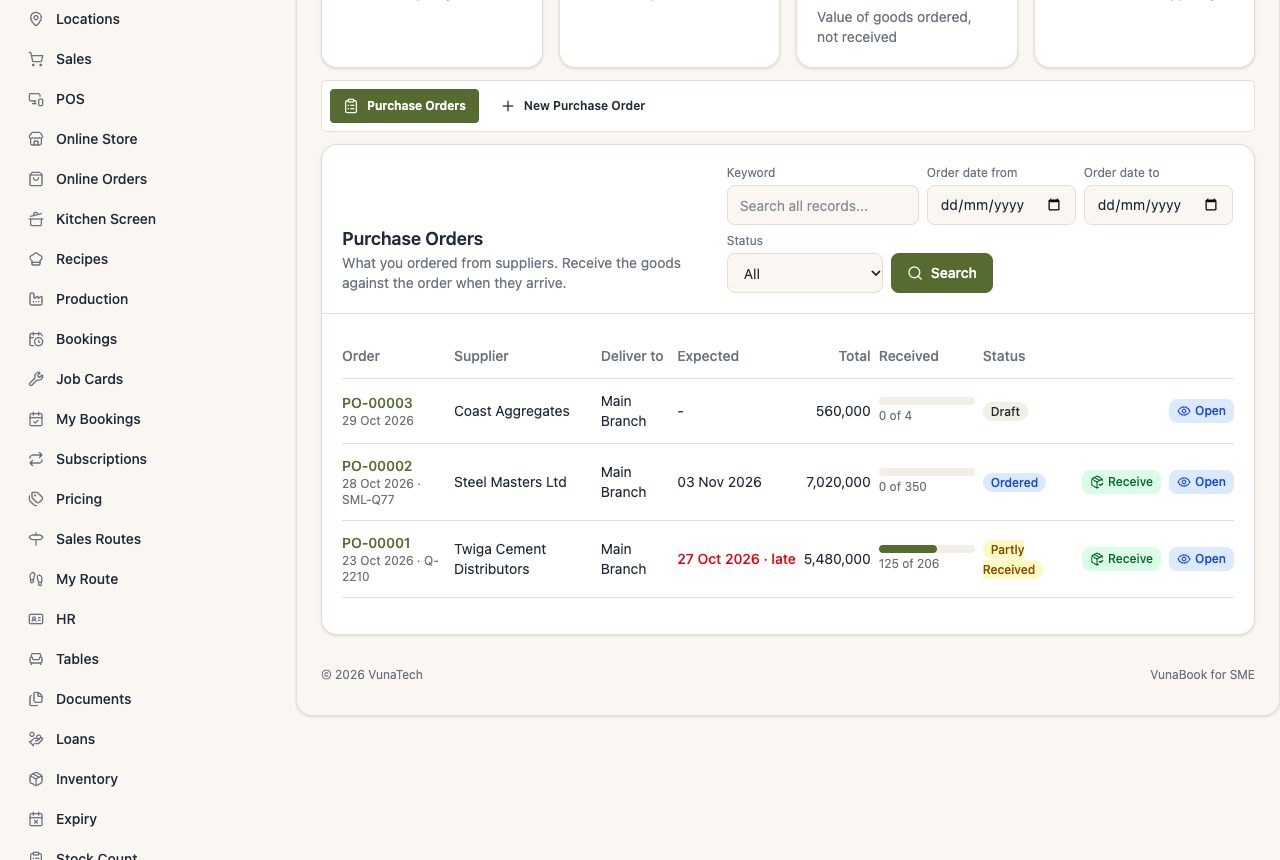
Make an order
- Purchase Orders → New Purchase Order: the supplier, where the goods are delivered, the expected date and the supplier's quotation number.
- Add the products (of that location), the quantity and the price. Order by the piece or by a unit like a carton.
- Save as Draft to change it later, or Save as Ordered. Print it, or send it to the supplier.
Receive the goods
When the goods come, open the order and press Receive Goods (a page made for a phone at the gate).
- Type, or scan, how many of each product arrived in good condition. All arrived fills in what was still to come.
- Refused: how many were damaged or wrong, and why. They do not go into stock and are not paid.
- Choose the bin they go to, the batch and expiry date, and the serial numbers of products that keep them.
- Add the supplier's delivery note number and, if you paid now, how much.
- Receive into Stock.
Each delivery becomes a purchase (the goods received note): the stock goes up, you owe the supplier, and the books record it, as with any purchase. A delivery above your approval limit waits for a manager first.
Part deliveries
An order can come in several deliveries. The order shows what was ordered, received, refused and still to come, and is Partly Received until everything has come. Refused goods are still to come (the supplier replaces them).
Close or cancel
If the rest will not come, Close the order with the reason. An order where nothing came is cancelled. If a delivery is voided, its goods are "still to come" again.
Late orders (past their expected date) are marked Late.